Uncategorized

How to Unfollow Unfollowers on Instagram Effectively

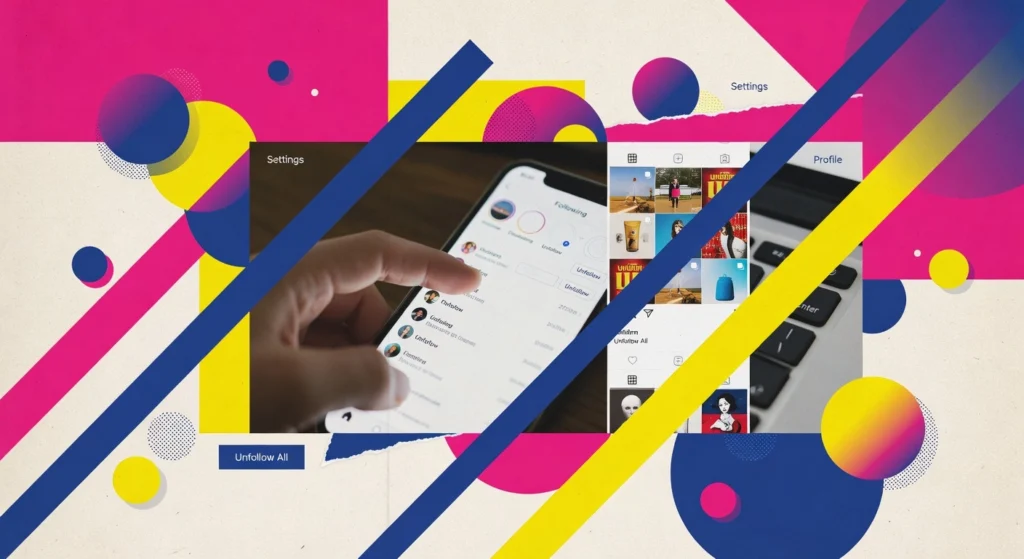
Ever notice your follower count drop while your following list keeps growing? It can feel like shouting into the void. If you want to unfollow unfollowers on instagram without drama or risking your account, you are in the right place. In this beginner friendly guide, we will walk through simple, step by step ways to clean up your follow list and focus on people who actually engage with you. You will learn how to spot non followers using Instagram’s built in tools, a quick manual check, and optional safe methods for tracking engagement. I will show you exactly where to look, how to pace your unfollows so you avoid action blocks, and how to organize a keep or unfollow shortlist. We will also cover basic etiquette, what to do before you unfollow a friend or brand, and the red flags to watch for with third party apps. By the end, your feed will feel lighter, your engagement will be clearer, and you will know how to maintain it in a few minutes a week. Let’s start making your Instagram follow list work for you. Prerequisites for Unfollowing on Instagram Before you unfollow unfollowers on Instagram, set yourself up for safe, efficient action. Instagram uses rate limits to curb spam, so keep unfollows to about 150 to 200 per day on mature accounts, and 50 to 100 on newer profiles, per this guide to Instagram unfollow limits. Pace yourself at 20 to 30 per hour and avoid rapid bursts to prevent temporary blocks, as noted in this summary of limits and penalties. Update the app to the latest version for stability and policy compatibility. Finally, switch to a Public profile so prospects can preview your content without requesting to follow. Prerequisites and materials: latest Instagram app, Public account, list of accounts to remove, and access to Jesus Empire’s AI-powered Instagram Automator. Confirm limits and plan batches of 20 to 30 unfollows per hour, staying under your daily max. Update the app, then relaunch Instagram. Set to Public: Profile, menu, Settings, Privacy, turn Private account off. In Jesus Empire’s Instagram Automator, choose Unfollow non-followers, enable throttling, queue a small test batch, and review results after 24 hours. Expected outcome: streamlined removals without action blocks, stronger account health, and more room for authentic engagement. How to Identify Accounts to Unfollow Prerequisites: switch to Professional account to unlock Insights; Materials: the Instagram app, a spreadsheet, and access to Jesus Empire’s tools. 1. Open Insights on your profile, then Audience and Content You Shared, and note posts with engagement rates under 2 to 3 percent, a sign of inactive followers. 2. Zero in on low interaction accounts by scanning the last 10 posts and Stories; followers who never appear in likes, comments, shares, saves or Story views for 30 days belong on a review list. 3. Cross-check, export or copy your follower usernames, then use a spreadsheet COUNTIF to compare against names engaged in the past month and flag zero matches. 4. For deeper analysis, use the AI-powered Instagram Automator by Jesus Empire and its Smart Engagement Engine, outlined here: How it works. Expected outcome: a clean shortlist to unfollow unfollowers on Instagram, protecting authenticity and reach as 2025 algorithms reward engagement. Step-by-Step Guide to Unfollowing What you need Before you unfollow unfollowers on Instagram, gather the basics: the Instagram app, a stable connection, and your shortlist of low-engagement profiles from Insights. For faster cleanup, have access to Jesus Empire’s Instagram Automator, which uses AI to mimic natural behavior and supports safe bulk unfollowing. Your expected outcome is a cleaner, more relevant feed and improved engagement rate, which supports Instagram’s 2025 focus on authenticity and quality interactions. Beginners often see a noticeable bump in story views and post interactions within a week as their feed and audience become more aligned. Keep a simple note or spreadsheet to track daily unfollow counts and avoid overdoing it. Steps Open Instagram and navigate to your followers list. Tap your profile, then check Following to see who you currently follow and who to remove. 2. Start unfollowing accounts with minimal engagement. Use Instagram’s Least Interacted With list to find 90-day low engagers, then remove mismatched or inactive profiles how this feature works. 3. Opt for gradual unfollowing to avoid flags. Newer accounts should keep to about 100 to 150 unfollows daily, established accounts up to 200. Work in batches of 20 to 30, pausing 30 to 60 seconds between actions safe pacing guidance. 4. Incorporate Jesus Empire’s Instagram Automator to bulk unfollow with custom limits, smart timing, and built-in safety. Set it to mirror your natural pace so you save hours while staying compliant. Tips for Maintaining Healthy Engagement Step-by-step to keep engagement healthy Prerequisites: switch to a Professional account, prep a simple content calendar, and enable Instagram Insights; Materials: the Instagram app, Story stickers, and access to Jesus Empire’s 4G Mobile Proxy; Expected outcome: steadier reach after you unfollow unfollowers on Instagram, more comments, and safer scale. 1. Engage daily by replying within 24 hours and adding two Story interactions weekly, like polls or question stickers, to trigger quick replies. 2. Post quality content that resonates, prioritizing short video and educational tips, a 2025 staple, and test one Reel and one carousel weekly. 3. For teams or multi-account workflows, use Jesus Empire’s 4G/5G Mobile Proxies to rotate real mobile IPs, improving account hygiene and reducing action blocks. 4. Monitor metrics in Insights, especially saves, shares, and 7-day retention; drop underperformers and double down on posts that drive profile visits. Troubleshooting Common Issues Fix limits and restrictions Prerequisites: Insights enabled and a recent backup of your follow list; Materials: the Instagram app and notifications on; Expected outcome: safe pacing with no action blocks. 1. If you get Action Blocked, stop unfollowing for 24 hours, then resume slowly. 2. Pace activity to no more than 10 unfollows per hour, a common ceiling noted here current hourly guidance. 3. Unfollow by hand inside the Instagram app to avoid terms violations, …

How to Unfollow Unfollowers on Instagram Effectively Read More »

Mastering Instagram Highlights: A Beginner’s Guide

Ever wish your best Instagram Stories could live longer than 24 hours? Highlights are your shortcut to keeping those moments front and center on your profile, so new visitors can binge your greatest hits anytime. Whether you want to showcase travel snaps, FAQs, or testimonials, Highlights make your profile feel curated and clear, even if you post on the fly. This beginner friendly how to will walk you through how to add highlights on instagram, step by step. You will learn how to create your first Highlight from your Story archive, how to add and remove clips, how to choose or design a clean cover, and how to rename and reorder for a polished look. We will also cover quick fixes when something is not showing up, privacy basics, and simple ideas for organizing by theme. By the end, you will have a profile that tells your story at a glance, and a repeatable process you can use in minutes. No fancy tools. Just your phone, a few taps, and a little creativity. Gathering Your Resources Prerequisites and materials Before you learn how to add highlights on Instagram, gather a few basics. Update your Instagram app, on iOS check the App Store updates tab, on Android check Google Play, this gives you the latest features. If you need a quick refresher, watch How to Add Instagram Story Highlights. Bring a phone with the updated app, a free Canva account, your logo files, and brand color hex codes. The outcome is simple, you will be ready to build clean, on brand Highlights without rework. Steps Collect or create engaging Stories, think behind the scenes, product demos, FAQs, and customer shoutouts. Carousels can reach engagement rates around 10.15 percent, so mix short clips and frames to keep viewers tapping. 2) Organize them into clear buckets like Products, Testimonials, FAQs, and Events to reduce friction and increase profile stickiness. 3) Design custom covers in Canva, search Instagram Highlight Cover, set 1080×1920, center a simple icon or logo, export PNG, upload as a Story, then set as the cover. 4) Align to brand identity, use exact hex colors and approved fonts, keep a mini style guide. For deeper tips, see Instagram Highlights: Everything You Need to Know in 2025. Creating a New Highlight Open Instagram and go to your profile, make sure Stories are saved to Archive so you can pull from them. 2. Tap the + icon under your bio in the Story Highlights area, then choose New to start a collection that keeps key Stories visible beyond 24 hours, a quick win when you are learning how to add highlights on Instagram. 3. Select as many past Stories as you like, focus on evergreen pieces like product walkthroughs, FAQs, testimonials, and event recaps, since 58% of users become more interested in a brand after seeing Stories, which means your Highlights can nurture warm traffic, see supporting data. 4. Choose a short, audience-first name such as Services, Before & After, Reviews, or FAQs, and add a clean cover to boost taps, you can quickly design on-brand covers using templates in this cover guide. Tap Done to pin the Highlight to your profile, review monthly and reorder as needed, and if you want to add Highlights from Archive without posting a new Story, follow this walkthrough. Editing Your Highlights If you already know how to add highlights on Instagram, here is how to refine them for impact. At Jesus Empire, we suggest ensuring your app is updated and Stories are saved to Archive, the outcome you want is a polished, on-brand Highlight that keeps visitors exploring. 1) Hold your finger on the Highlight icon you want to edit on your profile. 2) Tap Edit Highlight, then check or uncheck Stories to add or remove, trimming outdated clips and pinning your best tutorials, product shots, or testimonials. 3) To reorder for a cohesive story, clear the Highlight and re-add clips in sequence, for example Intro, Demo, Review, CTA, since Instagram displays by date. 4) Tap Edit Cover and upload a custom image that matches your colors, fonts, and logo so your grid looks tidy and clickable. Example, a café using Menu, Specials, Reviews can improve profile stickiness even as 2025 averages hover near 0.45 percent engagement, so clarity wins. Customizing Highlight Covers Before you think about how to add highlights on Instagram, prep your covers. Gather your brand colors, logo, and a simple icon set, plus the Instagram app and a free design tool like Canva. Keep relevance obvious, a suitcase for Travel, a cart for Shop, a star for Reviews, and limit text to 1 to 3 words. Aim for consistent colors, fonts, and spacing so your row of circles reads like a brand kit. With average Instagram engagement around 0.45 percent in early 2025, polished Highlights help your profile stand out. At Jesus Empire, we also recommend high contrast for accessibility. Quick steps In Canva, open an Instagram Story canvas, 1080 by 1920, set a brand background, then center a clear icon inside the invisible circle. Export as PNG and save to your camera roll. On Instagram, open your profile, long press a Highlight, tap Edit Highlight, tap Edit Cover, pick your PNG, pinch to fit the circle, tap Done. Repeat for each Highlight to keep a consistent set, then preview on different phones for legibility. Expected outcome, a clean, on-brand navigation bar that leads viewers to evergreen stories and improves taps and time on profile. Using Highlights for Business Strategy If you already know how to add highlights on Instagram, use them like mini landing pages for launches, promos, and culture. Create a New Arrivals or Deals highlight so followers find offers fast, and refresh weekly. Mix product teasers, FAQs, carousels, and short how tos to outperform typical 0.45 to 2.0 percent engagement. Add branded covers, and group content into Products, Tutorials, Reviews, and Events. Prerequisites: enable Story Archive, gather promo codes, BTS clips, customer quotes, logo files, and simple cover …

Mastering Instagram Highlights: A Beginner’s Guide Read More »

How to Create Engaging Instagram Highlights Easily

Ever wish your best Stories could live on your profile longer than 24 hours? Good news, they can. Instagram Highlights let you pin your favorite moments right under your bio, so visitors see them first. If you are a beginner and wondering how to make a highlight on instagram, you are in the right place. In this quick, beginner friendly guide, you will learn exactly how to create your first Highlight in minutes. We will cover how to save Stories to your archive, turn a live Story into a Highlight, add older Stories, rename and reorder clips, pick a cover image, and edit or delete when you need to. You will also get simple design tips for clean covers, easy theme ideas for personal accounts and small businesses, and smart tricks to keep viewers tapping through. No tech jargon, just clear steps you can follow right away. By the end, your profile will look more polished, and your best content will keep working for you long after the 24 hour timer runs out. Ready to start? Prerequisites and Materials Phone and app setup Before we dive into how to make a highlight on Instagram, grab a smartphone with Instagram installed and up to date. On your profile, open Settings, Privacy, Story, and turn on Save story to archive. This stores every Story so you can build Highlights from past moments and keep them visible beyond 24 hours. New to the feature? See how Instagram Highlights work in this quick primer: how Instagram Highlights work. Stories and optional design tools Have a few Stories ready to choose from, recent or archived. Think clear categories your audience actually wants, like FAQs, Reviews, Before and After, or Menu. Stories have 500 million daily users, so Highlights can turn visitors into followers by showcasing your best bits. Optional, design clean cover icons at 1080×1080, use brand colors, and center simple graphics so they crop cleanly. When ready, you can create a Highlight from your profile in under a minute with these steps: create a Highlight from your profile. Running a business? Jesus Empire’s Instagram Automator and 4G Mobile Proxy help keep posting consistent while you focus on creative. Step-by-Step Guide to Creating Instagram Highlights Start and select With your app ready, if you are wondering how to make a highlight on Instagram, you can do it in minutes. 1. Open Instagram and go to your profile using the bottom right icon. 2. Tap the New circle with the + under your bio to start a Highlight. 3. Pick past Stories from your Archive, tap each to checkmark, then hit Next for a preview. Aim to select 5 to 10 clips that tell one mini story, for example a product launch or event recap. Stories reach 500 million daily, and Highlights keep top moments alive. Name and design Name your Highlight so the theme is obvious, keep it short so it does not truncate, examples: Menu, Reviews, BTS, Events. 5. Tap Edit Cover, choose a frame from a Story or upload a clean 1080 x 1080 image with a simple icon and brand colors. Center the focal point and test legibility on dark and light mode. Align covers so the first row reads like navigation. Expected outcome: a tidy button on your profile that visitors can tap to binge key content. Pro tip from Jesus Empire: refresh Highlights monthly and add customer testimonials for extra trust. Customizing Highlights for Business Impact Align cover icons with brand aesthetics Prerequisites: brand colors and fonts handy, logo file, and a simple icon set. Materials: a design app and your existing Highlights. 1. Pick 2 to 4 brand colors and one font, then design clear icons for each category. 2. Export 1080×1080 covers, then upload in Edit Highlight; see aesthetic Instagram highlight cover ideas for examples. Showcase products and customer testimonials Create Highlights like Products, Tutorials, and Love from Customers. 4. Add shoppable Stories, quick demos or Reels snippets, and short CTAs to tap Link. Stories reach over 500 million accounts daily, and UGC drives about 42 percent of viral posts. For layout and testimonial ideas, study this guide to Story Highlights for brand trust. Organize Highlights for a seamless user experience Order Highlights by goals, for example Start, Products, FAQs, Testimonials, Events. 6. Keep each under 20 to 30 Stories, pin the best, prune monthly, and expect smoother navigation. Design refreshes lifted Highlight views by 22 percent, see design led Instagram transformations. Jesus Empire’s Instagram Automator and smart engagement engines help you queue Stories and keep Highlights fresh. Tips and Troubleshooting Common Issues Keep Highlights fresh and uncluttered Prerequisites and materials: Archive on and simple themes defined, plus your current Highlights list. Post Stories weekly so you always have new material to pin, remember over 500 million accounts watch Stories daily, so freshness boosts discovery. Curate by theme, for example New Arrivals, FAQs, Testimonials, then move only top clips into Highlights from Archive. Keep it tidy, aim for 5 to 7 Highlight albums and cap each album at roughly 15 to 20 Stories, audit monthly and remove outdated slides. Reorder by press and hold to put your highest value categories first so visitors quickly grasp your offer and your how to make a highlight on Instagram workflow stays simple. Fix display issues fast Expected outcome: Highlights load and attach new Stories correctly. Try these steps. 1. Update Instagram in your app store to get the latest fixes. 2. Clear cache, Android, Settings, Apps, Instagram, Storage, Clear Cache; on iOS, offload the app and reinstall. 3. Restart the phone and verify a stable Wi Fi or mobile data connection. 4. If problems persist, reinstall and review this quick tutorial, Instagram Highlights Not Working? Easy Fix in 2024!. Leveraging Instagram Automator to Optimize Highlights Smart scheduling for Highlight updates Prerequisites: an Instagram business account, Story archive on, and access to Jesus Empire’s Instagram Automator. 1) Map 4 goal based Highlight categories, then batch 8 to 12 short Stories so …

How to Create Engaging Instagram Highlights Easily Read More »

Master Unfriending on Facebook: A Step-by-Step Guide

Ever scroll through your feed and think, I barely know this person, why am I seeing their vacation pics again? If you have been hesitant to clean up your friend list, you are in the right place. This beginner friendly guide will show you exactly how to use the facebook unfriend option without the stress or confusion. In this how to, you will learn the simple steps to unfriend someone on Facebook on iPhone, Android, and desktop. You will also find out what happens when you unfriend someone, whether they get notified, and how to refriend them later if you change your mind. Not sure if unfriending is too final? We will explain the difference between unfollowing, restricting, and blocking, so you can choose the right move for your situation. By the end, you will feel confident trimming your friend list, keeping your feed focused on people you actually want to hear from. No tech jargon, just clear steps and quick tips to make your Facebook feel like yours again. Let’s tidy up that timeline, one tap at a time. Understanding the Importance of Facebook Unfriending Unfriending on Facebook is a simple act with big payoffs for digital self-care. Think of it as spring cleaning for your mind and feed. Quick starter plan: 1) Set an intention, for example reduce misinformation or drama. 2) Open Facebook and scan your recent feed for posts that spike stress, anger, or distraction. 3) Choose the right action, Unfollow or Snooze if you only need a break, Unfriend if the connection consistently harms your experience. 4) Remember, Facebook does not notify the person you unfriend, so you can act without confrontation. Expect a calmer feed and more relevant posts, a trend supported by findings that many users unfriended during the pandemic to protect information quality Users’ motivations study. Unfriending also declutters your digital space, which helps Facebook’s algorithm show you content that actually serves you. Research on defense tools against abusive friends shows users overwhelmingly accept recommendations to limit or remove harmful connections, signaling strong benefits for feed hygiene AbuSniff research. For mental health, curating connections aligns with digital well-being guidance that associates smarter feature use with reduced psychological symptoms digital well-being study. Prerequisites are minimal, a clear goal and five minutes per week. Expected outcomes include lower anxiety triggers, fewer unhelpful debates, and a feed that supports focus, which is especially helpful for entrepreneurs growing with Jesus Empire. Prerequisites for Unfriending on Facebook Quick pre-checks Before you tap facebook unfriend, make sure your setup will not interrupt the process. First, confirm a stable internet connection, switch to reliable Wi-Fi or ensure at least three bars of LTE to avoid incomplete actions. Next, update the Facebook app to the latest version since outdated builds can glitch or miss security fixes. Keep your password ready in case a session timeout prompts a fresh login, and if you forgot it, follow the official steps in the Facebook Help Center. For extra safety, use a strong unique password, see secure your Facebook password, and stay alert to suspicious friend requests that could be scams, outlined in friend request hacker trap explained. Internet: Load two sites or a speed test; if pages lag, reconnect or move closer to your router. Update: Open your app store, search Facebook, tap Update, then relaunch the app. Access: Log in to confirm credentials; note your recovery email or phone for resets. Expected outcome: a smooth, private unfriend action with no errors. Materials: reliable connection, updated app, password or recovery access. Step-by-Step Guide to Unfriending on Facebook Navigate to the friend’s profile you wish to unfriend. Open Facebook on desktop or in the mobile app, then use the search bar to type their name and select the correct profile. If there are several matches, confirm with the profile photo and mutual friends to avoid removing the wrong person. You can also open your Friends list and search there, which helps if the person recently changed names. Deactivated profiles still appear in your Friends list, so you can remove them too. Locate the ‘Friends’ button underneath their name. On desktop, it sits below the cover photo beside Message and Following. On mobile, it appears below the profile picture and name. If you see Add Friend instead, you are not currently connected, so no further action is needed. Click or tap Friends to open the menu for that person, then pause a moment to ensure you are on the right profile. Click Unfriend and confirm your decision on the pop-up alert. Choose Unfriend from the menu, then approve the confirmation prompt to finalize. The expected outcome of a facebook unfriend is immediate removal from your friends list, and Facebook does not send a notification to the other person. They could notice later if they visit your profile or try to interact. If your goal is only to reduce noise, consider Unfollow or Snooze, which keep the connection while hiding posts. Pew research has found that about 63 percent of profile owners have deleted people from their networks, a reminder that curating your list is common and healthy. If you prefer to keep ties, the next section covers lighter options. Maintaining an Engaging and Productive Facebook Feed Prerequisites and quick setup Give yourself 10 minutes, update the Facebook app, and set a simple goal like reduce political noise or promo clutter. Open your Friends list and News Feed to review what you actually see. Strong social ties usually show frequent chats and reactions across channels, weak ties do not, see research on strong and weak ties. Values matter, surveys suggest roughly 44 percent of users unfriend over offensive comments, so let clear standards guide you. Audit engagement for the last 30 days, flag people you have not messaged, reacted to, or seen offline, and note pages that feel irrelevant. Use the lightest fix first, Unfollow or try a 30-day mute with Snooze to reduce noise without ending the connection, see Facebook’s 30-day Snooze feature. Unfriend …

Master Unfriending on Facebook: A Step-by-Step Guide Read More »
Maximize Birthday Engagement with Facebook Ads

Imagine showing the perfect offer to someone right as they plan a birthday surprise or pick a party outfit. That is the magic of Facebook Ads for birthdays. If you are new to ads or just curious about birthday facebook strategies, you are in the right place. In this how-to guide, we will walk through simple steps to reach people with upcoming birthdays and their friends on Facebook. You will learn how to find the right audience, set up a campaign without getting lost in the dashboard, choose a budget that makes sense, and pick ad creatives that feel personal without being pushy. We will cover timing, like when to start your ads for best results, and what to say in your copy to spark clicks and comments. You will also see how to measure what works, so you can improve each week. By the end, you will have a clear plan to boost engagement around birthdays using Facebook Ads, even if this is your first campaign. Let’s make those celebrations work for your brand. Gather the Necessary Prerequisites and Materials Get access to a business Facebook account for ad creation Start by setting up or confirming access to Business Manager so you can run birthday Facebook ads. Do these in order: 1) Go to business.facebook.com and create your account, 2) verify business details if prompted, 3) create an ad account with the right time zone and currency, 4) add a valid payment method, and 5) grant Page and ad permissions to your team or to Jesus Empire if we are assisting. For a quick visual walkthrough, use this guide: How to Setup Facebook Business Manager and Ad Account the Right Way. Expected outcome: a ready-to-use ad environment with clean permissions and billing that prevents launch delays. Compile customer data for targeted birthday promotions You need accurate birthdays and consent. Implement these simple steps: 1) add a birthday field to sign-up and checkout forms, 2) build a preference center so customers can update dates, 3) collect birthdays during loyalty signups, and 4) send post-purchase prompts with a small incentive. Incentives work, so offer a 10 percent coupon for completing profiles, as suggested here: 6 Strategies for Collecting Customer Data for Early Personalization | Xeno’s Resources. With 72 percent of parents influenced by social ads for party decisions, clean birthday data directly fuels conversions. Expected outcome: a permission-based birthday segment ready for tailored offers. Identify creative resources for your ad posts Prepare a mini asset kit: square and vertical images with birthday motifs, 6 to 15 second video loops showcasing the offer, and copy variations that personalize tone and urgency. Test AR-style frames, confetti motion, or quick recap videos, since short, optimized creative wins in 2025. Plan to target people with upcoming birthdays, as outlined in Facebook Targeting: 4 Ideas to Target Upcoming Birthdays. Expected outcome: scroll-stopping creatives that lift CTR and lower cost per result, ready to deploy in your first test set. Step-by-Step Guide: Setting Up Facebook Birthday Ads Before you start Bring a simple birthday offer, for example 20 percent off or a free gift, plus 1 to 2 images or a 10 to 15 second video and a valid payment method to power your birthday Facebook ads. Expect quick engagement because birthdays are personal and time sensitive. Social ads influence buying, and 72 percent of parents consider them for birthday services. Install your pixel if available and note locations and ages. Jesus Empire can help polish creative and automate replies so you do not miss warm birthday leads. Step 1: Access Ads Manager and start a new campaign Log in to your business Ads Manager and click Create to start a new campaign. Name it Birthday Reach Test, choose a daily or lifetime budget, and set the schedule for at least 7 to 14 days to capture multiple upcoming birthdays. Use Advantage+ placements unless you have strict brand rules. Save the draft and move to the ad set level. Keep simple notes on what you test, such as offer A versus offer B. Step 2: Choose Reach for broad visibility Select the Reach objective under Awareness to maximize unique views across your audience. For a refresher, see the official overview, Meta objective overview. Add a frequency cap to prevent fatigue, for example 1 to 2 impressions every 7 days, a best practice covered here, Reach objective tips. Start with 10 to 20 dollars per day and monitor unique reach and saves. Your outcome is broad visibility for time bound birthday offers, not deep optimization yet. Step 3: Target birthdays precisely At the ad set, open Detailed targeting, then Demographics, Life events, and choose Upcoming birthday to reach people with birthdays next week. For monthly promos, pick Birthday in [Month]. To drive gift purchases, layer Friends of people with upcoming birthdays. Step by step screenshots are explained here, Birthday ad targeting guide. Use celebratory copy and a clear CTA. Adidas showed birthday triggered messaging can lift sales, and a free treat offer has boosted restaurant bookings. Tips and Troubleshooting for Effective Campaigns Before you tweak anything, set your prerequisites. Have a clear birthday offer, at least two image variations and one vertical video, and a small test budget split across ad sets. Prepare a simple audience plan that includes Facebook’s “upcoming birthdays” segment and your warm audiences. Your expected outcomes are higher click rates, more redemptions, and goodwill, since birthday Facebook campaigns tap into intent. Real brands have seen big lifts, like birthday-triggered promos driving sales spikes, and one local promo offering a birthday freebie boosted orders. Aim for incremental wins week over week rather than a one-day splash. 1) Personalize messages and images to enhance engagement Keep copy warm and occasion based, for example “Happy Birthday Month, enjoy 20% off.” Avoid using personal attributes like names. Pair copy with vertical 4:5 or 9:16 creative so your ad occupies more mobile screen space, and keep text on images minimal. Mix studio shots with authentic UGC to build …

Maximize Birthday Engagement with Facebook Ads Read More »

Mastering Facebook Marketplace for Business Growth

Want a simple way to put your products in front of thousands of nearby buyers without a big advertising budget? Facebook Marketplace is no longer just for yard-sale finds. Used strategically, it can become a reliable sales engine for small brands and startups. In this how-to guide, we will walk beginners through Facebook Marketplace for business, from creating a trustworthy profile to publishing listings that get clicks. By the end, you will know how to set up your shop correctly, choose the right categories, write compelling titles and descriptions, and use photos that sell. You will learn smart pricing tactics, how to handle local pickup and shipping, and how to respond to messages quickly to close more deals. We will cover safety and scam prevention, simple ways to build credibility with ratings, and basic metrics to track so you can scale what works. If you are new and want a clear, professional playbook you can apply today, you are in the right place. Let us turn casual scrolling into steady revenue, one optimized listing at a time. Understanding Facebook Marketplace Facebook Marketplace for business is a built-in buying and selling hub inside Facebook that prioritizes nearby discovery and simple messaging. It attracts a massive audience, with over 1.1 billion monthly users, which gives businesses instant exposure to active shoppers. It is available on mobile and desktop, and listings are shown by location, category, and relevance to each user. Key features include free listings, direct chats through Messenger, saved searches, and easy relisting. Popular categories span furniture, apparel, electronics, home goods, vehicles, and rentals, giving almost any local business a place to be discovered, as shown by popular Facebook product categories. Prerequisites A Facebook Page and Business Manager access. Clear product titles, pricing, inventory counts, and short return or pickup policies. High quality photos or short videos, ideally square, on a clean background. Fulfillment plan, local pickup radius, and basic shipping materials. Optional catalog and Shop setup if you plan to sync products across Facebook and Instagram. Quick-start steps Open Marketplace from your Page, select Create new listing, choose the most relevant category, and set your location radius. Write a clear title and price, then add a benefit-led description. Upload 5 to 10 images that show scale and condition in good light. Optimize for local reach by selecting pickup or local delivery, adding neighborhood tags, and responding quickly in Messenger to rank higher. Connect a Facebook Shop by creating a catalog in Commerce Manager, then enable your Shop to surface items on Marketplace where eligible. Measure and promote. Use listing insights to monitor views and messages, then test targeted ads to boost visibility for top sellers. For beginners, the biggest benefits are reach and relevance. Marketplace puts your products in front of nearby shoppers who are ready to act, which shortens the path from discovery to sale. Free listings keep costs low, and diverse categories make it easy to test offers without a full ecommerce site. Integration with Facebook Shops creates a consistent storefront that also appears across Instagram, which compounds visibility. If you want hands-on help with optimization, messaging workflows, and ad testing, Jesus Empire can handle the heavy lifting so you can focus on fulfillment and service. Setting Up Your Business Profile Create your Facebook Business Page Prerequisites and materials: a personal Facebook account, high resolution logo and cover image, short brand bio, and contact details. 1. Log into your account, open Create a Page, then follow this step by step video tutorial for a quick walkthrough. 2. Enter your official Page name, select up to three categories, and write a bio that states your audience and value. 3. Upload your logo and a branded cover, then complete phone, email, website, location, and hours so buyers can reach you easily. 4. Add a call to action like Shop Now or Contact Us, which guides Marketplace visitors toward purchase or inquiry. Optimize for increased visibility Keep branding consistent across platforms and in your Page URL, a best practice highlighted in Facebook SEO guidance from Hootsuite. 6. Place buyer keywords in your About, services, and posts, for example “home furniture in Denver” or “refurbished iPhones in Manila”, a tactic reinforced by Facebook SEO tips from Semrush. 7. Publish three to five posts weekly, use Reels, and cross link your Page from your website and Instagram. 8. Review Insights monthly to refine content timing and format, then test targeted ads to amplify Marketplace listings, which can lift reach by up to 35 percent. Expected outcome: stronger discovery, steadier engagement, and more qualified conversations with local and regional buyers. Link Facebook Shops and build credibility In Commerce Manager, set up Facebook Shops, import your catalog, add detailed titles and descriptions, and link the Shop to your Page. 10. Tag products in posts and connect items to Marketplace listings so shoppers can move from discovery to checkout without friction, even on mobile. 11. Turn on reviews, answer comments and messages within 24 hours, verify business info, and use authentic photos to strengthen trust. 12. Publish clear return and shipping policies, enable Page Transparency, and showcase testimonials to reduce purchase anxiety. If you want a done for you setup, Jesus Empire can sync your catalog, deploy smart engagement replies, and monitor performance so your presence stays credible. Listing Your Products Effectively Prerequisites and expected outcomes Materials you need: a smartphone or DSLR, a clean backdrop, basic product specs, and a pricing benchmark from competitor research. Prerequisites: a published Business Page and Marketplace access on desktop or mobile. Expected outcomes: higher listing impressions, more saves and messages, and improved conversion, especially when listings are later paired with targeted ads that can lift reach by up to 35 percent. Keep your brand voice consistent, and prepare a short list of keywords, including your primary phrase, to streamline writing. Capture standout images and write clear descriptions Use natural window light to show true color and texture, and avoid harsh shadows, a best practice echoed by Oberlo’s Marketplace …

Mastering Facebook Marketplace for Business Growth Read More »

How to Use Story Viewers for Engaging Content Analysis

Ever wonder why one quick selfie story gets tons of replies, but your polished clips barely get a glance? The difference is not magic, it is measurement. With a story viewer you can see what people actually do with your stories and turn that insight into content that clicks. This beginner friendly guide shows you exactly how to use a story viewer to analyze engagement without getting lost in jargon. You will learn which metrics matter most, views, completion rate, taps forward and back, exits, and how to read the drops between frames. We will set up a simple tracking routine, pick a clear goal for each story, then test small changes like length, stickers, captions, and posting time. You will also get easy prompts to brainstorm hooks, a quick checklist for publishing, and a repeatable template for weekly reviews. By the end, you will know how to spot patterns fast, fix underperforming stories, and double down on what lands with your audience. Let’s make your next story your best one yet. Understanding Story Viewers What is a story viewer? Put simply, a story viewer is anyone who watches your temporary Stories on Instagram, Snapchat, Facebook, or TikTok. Stories are short photos or videos that disappear after 24 hours, pioneered on Snapchat and now standard across platforms, see this overview of social media Stories. For businesses, the viewer list doubles as instant feedback, showing reach, taps, exits, and who stuck around to the last frame. Scale is huge, Instagram reports roughly 500 million daily Story users and in 2019 about 1.5 billion people used Stories daily, so your viewer data is a goldmine. Native vs third-party story viewers Native features live inside each app and follow platform rules, so they are reliable and real time. Third-party tools add cross-platform dashboards, scheduling, and longer-term analytics, but some metrics are limited by APIs, as this guide to app limitations explains. Quick how-to, prerequisites: a Business or Creator account; materials: your phone and one optional analytics tool; steps: 1) Post a Story, 2) After one hour, open the viewer list and record reach, replies, taps, 3) Trial one tool, review permissions, and compare numbers for a week. Expected outcome: a clear baseline for what your audience watches and interacts with. Why engagement from story viewers matters Engagement from story viewers drives distribution because algorithms boost content that gets fast replies, poll votes, and link taps. Interactive stickers often lift completion rates and dwell time, helping more people see the next Story in your sequence. With millions watching Stories daily, even a 5 percent bump in sticker taps can compound into meaningful traffic and leads. Keep testing first-frame hooks and CTAs, then use those viewer insights to plan smarter, while Jesus Empire handles the busywork so you focus on creative angles that convert. Tools and Services for Story Viewing Native and third‑party options If you are just getting started with a story viewer, begin with native tools. Instagram’s built‑in viewer lets you watch stories, tap to pause, and see basic insights like viewers and exits, which is plenty when you are testing ideas. Given that over 500 million people use Instagram Stories daily, even small improvements to your viewing and engagement routine can move the needle for reach. When you are ready for extras like downloading or creative prompts, third‑party tools can help. Try the AI‑assisted creator and viewer at StoryViewer.ai, or workflow extensions such as IG Automator and Superpowers for Instagram to streamline bulk actions. Quick setup steps Prerequisites: an Instagram account, clear goals, and a phone or Chrome desktop. Start native: watch 25 to 50 niche‑relevant stories daily, reply to 5 with genuine comments; expect modest profile visits within a week. Add a safe helper: install one extension and set conservative limits, for example 100 story views per day, then monitor account health for 72 hours. Test content: run one interactive sticker poll in your own story every 48 hours to lift completion rate by 10 to 20 percent. Track results: log views, replies, and follows; look for a 5 to 10 percent uptick after two weeks. Why choose Jesus Empire’s Instagram Automator, plus privacy checkpoints Jesus Empire’s Instagram Automator is beginner friendly, combining a smart engagement engine, scheduled posting, and targeted story viewing to nudge reciprocal visits without busywork. It can view and like stories from accounts that match your niche, reply with templates, and update bios to sharpen positioning, which is ideal when you have limited time. For privacy, favor tools that do not ask for your password, use minimal permissions, and respect Instagram’s terms. Read recent reviews, cap daily actions, and avoid apps that promise anonymous viewing in ways that violate platform rules. If a tool publishes rate limits, security practices, and support contacts, that is a good sign; if not, skip it. Step-by-Step Guide: Setting Up Your Story Viewer Accessing story viewers on Instagram, Snapchat, and Facebook Stories move fast, so get comfortable checking your viewer lists while they are fresh. Instagram: 1) Open your active Story and swipe up to see viewers; 2) after 24 hours, go to Profile, tap the menu, open Archive, select the Story, then swipe up again, Instagram typically keeps the viewers list for about 48 hours after posting, see the steps in this guide from Sharelov’s Instagram Story viewers overview. Snapchat: 1) Open your public Story Snap, 2) swipe up to view Insights and Replies, then check Viewers or tap a reply to respond, details are in Snapchat Support’s article. Facebook: open your Story and tap the eye icon at the bottom to see who watched, this list is available while the Story is live, usually 24 hours. Pro tip for beginners, note the time you see the biggest viewer counts, like lunchtime spikes for food brands, then post tomorrow 30 minutes before that window. With millions watching Stories daily, small timing tweaks can lift reach without extra budget. Stay safe if you try third‑party tools Third‑party story viewer apps can …

How to Use Story Viewers for Engaging Content Analysis Read More »

Master Instagram Reels Viewing: A Beginner’s Guide

Reels move fast on Instagram, but learning how to watch them does not have to. If short, vertical videos keep popping up and you are not sure what to tap, swipe, or save, you are in the right place. This beginner friendly how-to will show you how to get comfortable with the instagram reels viewer so you can explore confidently, enjoy smarter recommendations, and never miss a trend. Inside, you will learn the basics, how to open Reels from your home feed, how to use the viewer controls, and how to interact with likes, comments, and shares. We will walk through saving Reels to collections, following audio and hashtags, and discovering creators you will love. You will also see quick tips for turning on captions, managing sound, and adjusting what shows up. Finally, we will cover simple fixes for common issues like blurry video or no sound, so you can watch without frustration. Prerequisites and Materials What you need before you start Understand Instagram basics and sign in. Create a free account in the app, then open the Reels tab and Explore to start watching. Expected outcome: as an Instagram Reels viewer, you can follow creators, save audio, and engage confidently. 2. Use a smartphone with the latest Instagram app installed. Updates unlock features like Templates, Remix, and easy cross posting to Facebook, and Reels drive roughly 140 billion plays per day across Meta surfaces according to 2025 Instagram Reels statistics. Expected outcome: you see the newest viewer controls, effects, and captions. 3. Secure a stable connection. Prefer fast Wi-Fi, close bandwidth heavy apps, and run a quick speed test to minimize buffering; if you manage brand accounts, Jesus Empire’s 4G Mobile Proxy can help. Expected outcome: smoother streaming and accurate view counts. Pro tip: businesses can pair this setup with Jesus Empire’s Instagram Automator to scale engagement, and 90% of brands already publish Reels per Emplifi’s 2023 Social Media Trends report. Step 1: Accessing Instagram Reels Ready to become a confident Instagram Reels viewer? Step 1 is simply finding the Reels feed, the place where short videos, up to 60 seconds, are curated for you. Reels drive a huge share of Instagram attention, and brands rely on them for discovery and engagement. Recent 2025 figures show Reels are reshared over 4.5 billion times per day, a strong signal that it is worth learning the basics early, see the 2025 Instagram Reels statistics. With your account set up from the prerequisites, we will start inside the Instagram app and get you to the right screen in seconds. Keep your app updated so icons and features match what you see below. Quick steps Open Instagram and go to your Home feed. Launch the Instagram app on iPhone, Android, or iPad. If you are prompted to continue where you left off, tap Home to ensure you are on the feed that shows posts from accounts you follow. Locate the Reels icon on the bottom navigation bar. Look for the clapperboard-style icon, typically centered on the bottom row. If you do not see it, update the app from the App Store or Google Play, then relaunch. Tap the icon to open the Reels feed. You will see a full-screen vertical video with audio, plus on-screen controls for Like, Comment, Share, and Audio. Swipe up to see the next Reel, double tap to like, or tap the audio to explore more clips using the same sound. Expected outcome and tips After step 3, you are inside the instagram reels viewer, a continuous feed of popular and trending Reels tailored to your interests. Expect to see content from creators you do not follow, which increases discovery and reach for businesses. As a beginner, try saving one Reel, sharing another to Stories, and following a creator whose style you admire. These simple actions help Instagram personalize your feed quickly. For businesses, treat this as a quick competitor scan, watch how top brands hook viewers in the first 2 seconds, add captions, and use AR effects. At Jesus Empire, we suggest 10 minutes of daily Reels research to capture hooks and hashtag ideas you can test in your next post. Step 2: Customizing Your Reels Feed Instagram’s Reels algorithm learns quickly from what you watch, like, save, share, and comment on. The more clearly you signal your interests, the more relevant your Reels feed becomes. For beginners, this turns you from a passive Instagram Reels viewer into a curator of your own inspiration. Meta reports time spent on Instagram grew 24% after leaning into AI-powered Reels recommendations, which shows how strongly interactions shape what you see Meta’s AI recommendations explained. For small businesses, a tailored feed means faster trend spotting, better competitor intel, and creative ideas you can repurpose with tools from Jesus Empire. What you need Updated Instagram app and at least 5 minutes daily to interact with Reels A short list of interests or business niches to focus on Optional: a professional account to access Reels insights Optional: Jesus Empire’s smart engagement tools to scale consistent activity Steps Use the algorithm’s suggestions. Watch Reels you love to the end, tap Like or Save, and follow prompts to see similar topics. If available in your region, open Instagram’s “Your Algorithm” topic controls to add or remove interests so your feed follows your goals Reels topic controls overview. Follow aligned accounts. Search niche hashtags, open creator profiles, and follow those who consistently post what you want to see. Example: a local coffee shop follows barista tips, latte art creators, and cafe design accounts to tilt the feed toward high-performing trends. Engage to shape future picks. Comment thoughtfully, share to Stories, and Save posts you may reuse. Tap the three dots on a Reel and select Not Interested to hide similar content. Measure and refine. Check Reels insights weekly. If you are a brand, aim for higher interactions than single-image posts and keep training the feed until your inspiration stream feels on-brand. Expected outcome Within a few …

Master Instagram Reels Viewing: A Beginner’s Guide Read More »

Unlocking ROI: Digital Marketing Strategies

Every dollar you invest should come back working harder for your business. If your ads, emails, or social posts feel busy but not effective, you are not alone. In this post, we analyze how digital marketing can move from scattered tactics to a focused engine for return on investment. You will get clear, beginner friendly guidance without jargon, and practical ways to apply it today. You will learn what ROI really means in a marketing context, how to set goals that tie to revenue, and which channels fit common objectives such as awareness, consideration, and conversion. We will cover the core metrics to track, simple attribution options, and an easy test and learn cycle that protects your budget. You will also see how to estimate CAC and LTV at a basic level, prioritize campaigns, and avoid common pitfalls. By the end, you will know how to choose digital marketing strategies that earn their keep. Current State of Digital Marketing How the landscape has evolved Digital marketing has shifted from siloed tactics to an integrated, data-led discipline. Early efforts focused on banner ads and basic SEO, while today brands orchestrate search, social, video, email, podcasts, and retail media with unified measurement. Investment keeps rising, with global ad spending projected to exceed $734.6 billion by 2025. Video remains a proven pillar, as 93% of marketers report positive ROI. Audio is catching up fast, with 91% of companies planning to sustain or boost podcast investment in 2025. AI and personalization are becoming foundational. Brands that tailor content and offers to user intent are outperforming revenue targets, a pattern echoed in faith-based case studies from Parable Group and FrontGate Media that match messages with values-driven audiences. Why agencies often deliver higher ROI Agency-managed campaigns benefit from specialized talent, enterprise tools, and cross-industry benchmarks that shorten the learning curve. Effective agencies implement test-and-learn frameworks, creative pretesting, and rigorous attribution to allocate spend to the best-performing channels. For beginners, an agency can also handle compliance and account security, including using mobile proxies to manage multiple social profiles safely and reduce the risk of IP bans. Firms like Troops & Allies and Missional Marketing show how niche expertise improves outcomes for faith-based audiences, blending SEO, paid search, and video to lift conversions. Ask prospective partners for a 90-day experimentation plan, a path to first-party data integration, and a timeline for marketing mix modeling to validate incremental ROI. UGC and AR as growth engines User-generated content increases trust and lowers production cost, which is valuable in awareness and conversion phases. Seek permissioned UGC from customers, creators, and community members, then repurpose it in ads, landing pages, and email. Creator whitelisting on platforms like TikTok and Instagram can amplify reach while preserving authenticity. Augmented reality is moving from novelty to utility, especially for retail and beauty try-ons, product demos, and event previews. For values-led organizations, UGC stories and testimonial clips perform strongly, while lightweight AR filters can boost engagement. Measure impact with view-through conversions, brand lift studies, and incremental holdout tests to verify real gains. AI and Personalization Impact How AI elevates automation and personalization AI turns fragmented tactics into coordinated, audience-first experiences by automating what used to be manual and guesswork. Predictive models segment visitors in real time, select the next best message, and trigger emails or SMS based on intent rather than a fixed calendar. Dynamic creative optimization serves tailored images, copy, and offers across ads and landing pages, while chatbots and virtual assistants personalize support and product discovery at scale. Faith-focused practitioners show this in action: Parable Group and agencies like Troops & Allies and Missional Marketing use intent data to match content with values-driven audiences, improving engagement and conversions. Similarly, Christian digital marketing case studies demonstrate how faith-oriented messaging combined with audience signals increases response rates across influencer, social, and PR campaigns. To operationalize this safely, teams managing multiple social profiles should use mobile proxies to reduce account linkage risk and avoid IP bans, allowing AI scheduling, comment moderation, and A/B testing to run uninterrupted. Revenue impact and why 2025 matters Personalization is not a vanity upgrade, it is a revenue engine. Industry research indicates companies that excel at personalization generate roughly 40 percent more revenue from those activities compared with average performers, and brands that lead in personalization consistently outperform revenue goals. Video personalization is especially potent, relevant given that 93 percent of video marketers report positive ROI, since AI can tailor thumbnails, hooks, and CTAs to audience micro-segments. Audio is rising too, with 91 percent of companies planning to sustain or increase podcast investment in 2025, and AI can match mid-roll ads and show notes to listener interests. With global digital ad spend projected to top 734.6 billion dollars by 2025, AI-driven relevance becomes essential to win auctions, reduce CAC, and protect margin. Practical next steps for beginners include building a unified profile with consented and zero-party data, testing predictive send-time optimization, deploying product or content recommendations on site and in email, personalizing video captions and end cards, and using small, controlled experiments to validate lift before scaling. Effective Multi-Channel Strategies Combine channels for reach and personalization Effective multi channel strategies start with one audience view, then map content to the journey across search, paid social, email, display, organic, affiliates, and podcasts. With global digital marketing ad spend projected to be over $734.6 billion by 2025, marketers need orchestration rather than isolated tactics. AI and personalization allocate budgets by audience propensity and creative, helping brands exceed revenue targets when experiences feel relevant. Case studies from Troops & Allies and Missional Marketing demonstrate platform mixes that respect faith-based community norms, pairing search intent with high trust placements in church directories and streaming audio. When managing many brand or ministry profiles, use mobile proxies and account rotation to post and monitor securely, protecting logins and avoiding IP bans that can derail schedules. Creative campaigns that travel across channels Creative campaign mechanics accelerate reach. Sweepstakes and value-based giveaways travel well across channels, turning passive scrollers …

Unlocking ROI: Digital Marketing Strategies Read More »

Mastering Instagram Unfollow: A Step-by-Step Guide

Ever scroll through your feed and think, Why am I still following this account? You are not alone. Cleaning up who you follow can make Instagram feel fresh again, and it can boost how much you enjoy the app. The trick is doing it the right way, especially if you are new to all this. In this guide, you will learn unfollow for instagram basics in a simple, step by step format. We will cover how to identify accounts that no longer serve you, how to use Instagram’s built in tools, and how to unfollow safely without risking action blocks. You will also learn how often to unfollow, what Instagram limits look like, and easy signs that tell you who to keep and who to let go. No jargon, no complicated apps, just clear instructions you can follow today. By the end, you will have a tidy following list, a more relevant feed, and a routine you can repeat in minutes. Ready to take control of your scroll? Let’s start. Prerequisites and Materials Before you start any unfollow for Instagram routine, make sure your materials are set. Use a smartphone or tablet with reliable Wi-Fi or 4G, keep the OS current, and clear storage so updates install smoothly. Download or update the Instagram app, then enable auto updates for fewer bugs and the latest safety fixes. Instagram serves a massive audience of over 2 billion monthly users, so features change often, which is why staying updated matters Top Instagram statistics 2025. Most users are ages 18 to 34, a good reminder to tailor goals if you run a brand account Instagram case study 2025. Now, get familiar with the interface and your why. 1. Open Instagram and tap your profile. 2. Tap Following to see accounts. 3. Search a name and tap Following to switch it to Follow. Instagram does not notify the other person, so you can repeat this in short sessions without social friction. Set clear goals, for example reducing content overload, pruning inactive accounts, or improving your follower to following ratio for credibility, and if you are a business, Jesus Empire can help you audit this list before you start for a safer, faster process, with the outcome of a cleaner feed and more attention on the accounts that matter. Step-by-Step Guide to Unfollowing on Instagram Grab your updated phone from the prerequisites and a steady connection, then you are ready to go. 1) Open the Instagram app and sign in if prompted. 2) Tap your profile at the bottom right, then tap Following to see everyone you follow. Scan for accounts that no longer fit your goals, for example a seasonal shop you only needed last December. Unfollowing is private, Instagram does not notify the other person, so you can tidy your feed without awkward messages. To identify low-value follows fast, use Instagram’s Least Interacted With list, which highlights 90-day low engagement accounts, details here: how the feature appears and works. 4) Tap Following beside a name, choose Unfollow, and confirm. Pace yourself, many creators recommend keeping actions under roughly 150 to 200 unfollows per day to avoid spam flags, see guidance on limits in the same article above. If you prefer a softer approach, you can mute posts or stories instead of unfollowing using the three-dot menu, instructions here: how to mute on Instagram. Expected outcome: a calmer feed, less content overload, and more meaningful engagement, which aligns with Jesus Empire’s approach to smart audience curation when you plan any unfollow for Instagram routine. Alternative Strategies: Mute and Restrict Mute at a glance Prerequisites: updated app, stable connection, logged-in phone. To mute without unfollowing, 1) tap the three dots on a post, 2) choose Mute, 3) select Posts, Stories, or both, or 4) from a profile, tap Following then Mute. Muted accounts are not notified, and you can still view their profile. Use it for content overload, like a partner brand posting hourly, or when you want a temporary break. Expected outcome, a cleaner feed and intact relationships, see How to mute on Instagram. Restrict and smart alternatives Restrict quietly limits a person’s impact without drama. Steps, 1) from a comment, swipe left, tap the exclamation icon, choose Restrict, or 2) from their profile, tap the three dots, select Restrict. Their comments are visible only to them until you approve, DMs move to Requests, and they cannot see your activity status, see What Restrict does on Instagram. Choose Restrict for trolls or pushy DMs. Compare, Unfollow hides content only, Mute hides posts and stories, Restrict controls interactions. For unfollow for Instagram routines on brand accounts, use Mute for temporary noise, Restrict for safety, Unfollow when values diverge. Maintaining a Balanced Instagram Feed Before you fine tune your unfollow for Instagram routine, gather a charged phone, a notes app for goals, and access to Instagram Insights; plan a 10 minute weekly review. 1) Set goals for your interaction using SMART targets, for example, aim for a 15 percent lift in saves and comments in 90 days, and define a healthy follow to following ratio that fits your brand. 2) Review and adjust your feed weekly, check Least Interacted With, remove 5 to 10 accounts that no longer match your audience or values, and save new creators who consistently help your objectives. 3) Engage meaningfully with people you keep, reply within 24 hours, run two Story polls per week, and reshare quality UGC to strengthen ties. 4) Streamline follower management with the Jesus Empire Instagram Automator, use Precision Targeting, schedule engagement windows, and queue safe unfollow actions to avoid spikes. Expect a cleaner feed, steadier attention, and more relevant interactions, supported by research on Instagram engagement dynamics here. Benefits of Unfollowing Accounts When you run an unfollow for Instagram clean-up, your feed gets lighter and your attention goes to what truly matters. Cleaning out irrelevant or inactive accounts reduces digital clutter and overload, which studies link to better focus and lower stress, and you can start …

Mastering Instagram Unfollow: A Step-by-Step Guide Read More »

Scroll to Top